



-
Math-U-See
- Online Instruction with Video Access
- Adapting to the Updated Format in Algebra 1: Principles of Secondary Mathematics
- Why Did Demme Learning Develop Algebra 1: PSM?
- Transferring Digital Licenses
- Strategies for Gamma: Multi-Digit Multiplication with Manipulatives
- Pre-Algebra Lesson 8 Solutions
- Why Upper Level Math Presenters are Off-Screen
- What Are Skip Counting Songs and Where Can I Find Them?
- Is Demme Learning Discontinuing the Math-U-See DVDs?
- Math-U-See PreAlgebra Tips for Success
- Math-U-See Algebra 1: Legacy Tips for Success
- Math-U-See Geometry Tips for Success
- Math-U-See Algebra 2: Legacy Tips for Success
- Why Is Counting an Inefficient Method for Solving Math Facts?
- How Math-U-See Aligns with Texas Math Standards (TEKS)
- How Money Blocks Use Grouping by Five to Teach Money Concepts
- Using Fraction Overlays
- Pacing in Algebra 2: Principles of Secondary Mathematics
- What a Week Looks Like in Algebra 2: Principles of Secondary Mathematics
- How a Lesson Works in Algebra 2: Principles of Secondary Mathematics
- How to Know Algebra 2: PSM is Right for Your Student
- Using the Printed Algebra 1: Principles of Secondary Mathematics Instructor Handbooks
- Show all articles ( 19 ) Collapse Articles
-
- Activity Sheets
- Application and Enrichment Solutions for Older Editions
- Calculator Usage
- Corrections for Comb-Bound Editions
- Course Descriptions
- Engaging Your Math-U-See Student
- Honors Solutions for Older Editions
- How to Use the Digital Toolbox
- Math-U-See Curriculum Cover Images
- Math-U-See Curriculum Student Workbooks
- How to Teach Math-U-See Lessons
- Math-U-See Magnetic Blocks
- Math-U-See Mastery
- Math-U-See Tests
- Math-U-See Videos
- Playing DVDs on Windows 10
- Printable Graph Paper
- Record Keeping, Grading, and Transcripts
- Word Problem Tips
- Tips for New Math-U-See Users
- Tips for the struggling math student
- Using Math-U-See with Color Vision Deficiency
- Version Compatibility
- What do I need to use Math-U-See?
- Math-U-See Curriculum Softcover Instruction Manuals
- When Students Struggle with Fractions
- Manipulative Kit Contents
- Do Demme Learning Products Follow State Standards?
- Math-U-See Video Lengths
- How to Print a Completion Certificate for a Math-U-See Level
- The Value of Math-U-See Student Workbook and Tests
- Why Upper Level Math Presenters are Off-Screen
- Understanding Changes to Demme Learning Bundled Sets
- Are Math-U-See Manipulatives Non-Toxic?
- Watching Math-U-See Videos on a Chromebook?
- Is Demme Learning Discontinuing the Math-U-See DVDs?
- Why Is Counting an Inefficient Method for Solving Math Facts?
- How Math-U-See Aligns with Texas Math Standards (TEKS)
- How Money Blocks Use Grouping by Five to Teach Money Concepts
- Show all articles ( 36 ) Collapse Articles
-
- Strategies for Gamma: Multi-Digit Multiplication with Manipulatives
- Pre-Algebra Lesson 8 Solutions
- Why Upper Level Math Presenters are Off-Screen
-
- Activity Sheets
- Application and Enrichment pages for Primer, Alpha and Beta
- Calculator Usage
- Corrections for Comb-Bound Editions
- Math Fact Sheets
- Math-U-See Curriculum Cover Images
- Math-U-See Curriculum Student Workbooks
- Record Keeping, Grading, and Transcripts
- Version Compatibility
- Math-U-See Video Lengths
- What Are Skip Counting Songs and Where Can I Find Them?
- Show all articles ( 8 ) Collapse Articles
-
- Activity Sheets
- Application and Enrichment pages for Primer, Alpha and Beta
- Calculator Usage
- Corrections for Comb-Bound Editions
- Math Fact Sheets
- Math-U-See Curriculum Cover Images
- Math-U-See Curriculum Student Workbooks
- Record Keeping, Grading, and Transcripts
- Version Compatibility
- Math-U-See Video Lengths
- Show all articles ( 7 ) Collapse Articles
-
- Application and Enrichment Solutions for Older Editions
- Calculator Usage
- Corrections for Comb-Bound Editions
- Math Fact Sheets
- Math-U-See Curriculum Cover Images
- Math-U-See Curriculum Student Workbooks
- Record Keeping, Grading, and Transcripts
- Version Compatibility
- Math-U-See Video Lengths
- Strategies for Gamma: Multi-Digit Multiplication with Manipulatives
- What Are Skip Counting Songs and Where Can I Find Them?
- Show all articles ( 8 ) Collapse Articles
-
- Application and Enrichment Solutions for Older Editions
- Calculator Usage
- Corrections for Comb-Bound Editions
- Math Fact Sheets
- Math-U-See Curriculum Cover Images
- Math-U-See Curriculum Student Workbooks
- Record Keeping, Grading, and Transcripts
- Version Compatibility
- Math-U-See Video Lengths
- Show all articles ( 6 ) Collapse Articles
-
- Application and Enrichment Solutions for Older Editions
- Calculator Usage
- Corrections for Comb-Bound Editions
- Math Fact Sheets
- Math-U-See Curriculum Cover Images
- Math-U-See Curriculum Student Workbooks
- Record Keeping, Grading, and Transcripts
- Version Compatibility
- Math-U-See Video Lengths
- Epsilon Tips and Tricks for Fractions
- Using Fraction Overlays
- Show all articles ( 8 ) Collapse Articles
-
- Application and Enrichment Solutions for Older Editions
- Calculator Usage
- Corrections for Comb-Bound Editions
- Math Fact Sheets
- Math-U-See Curriculum Cover Images
- Math-U-See Curriculum Student Workbooks
- Record Keeping, Grading, and Transcripts
- Version Compatibility
- Math-U-See Video Lengths
- Show all articles ( 6 ) Collapse Articles
-
- Pre-Algebra Lesson 7 Support Video
- Application and Enrichment Solutions for Older Editions
- Calculator Usage
- Corrections for Comb-Bound Editions
- Course Descriptions
- Honors Solutions for Older Editions
- Math-U-See Curriculum Cover Images
- Math-U-See Curriculum Student Workbooks
- Printable Graph Paper
- Record Keeping, Grading, and Transcripts
- Version Compatibility
- Bridge Materials: Pre-Algebra to Algebra 1: Principles of Secondary Mathematics
- Math-U-See Video Lengths
- Order of Operations - PreAlgebra Lesson 14 and Algebra 1: Legacy Edition Lesson 2
- Pre-Algebra Lesson 8 Solutions
- Math-U-See PreAlgebra Tips for Success
- Show all articles ( 13 ) Collapse Articles
-
- How a Lesson Works in Algebra 1: Principles of Secondary Mathematics
- What a Week Looks Like in Algebra 1: Principles of Secondary Mathematics
- Record Keeping, Grading, and Transcripts
- Better Practice versus More Practice in Algebra 1: Principles of Secondary Mathematics
- Pacing in Algebra I: Principles of Secondary Mathematics
- What's the Difference between Algebra 1: Principles of Secondary Mathematics and Algebra 1: Legacy?
- A1: PSM Videos
- Bridge Materials: Pre-Algebra to Algebra 1: Principles of Secondary Mathematics
- Math-U-See Video Lengths
- Adapting to the Updated Format in Algebra 1: Principles of Secondary Mathematics
- Why Did Demme Learning Develop Algebra 1: PSM?
- Readiness and Review Materials: Algebra 1: PSM to Algebra 2: PSM
- If I've Completed Algebra 1: PSM, What Should I Do Next?
- Using the Printed Algebra 1: Principles of Secondary Mathematics Instructor Handbooks
- Show all articles ( 11 ) Collapse Articles
-
- Extra Practice Pages for Algebra 1: Legacy Edition
- Algebra 1: Legacy Edition Lesson 1 Support Video
- Calculator Usage
- Corrections for Comb-Bound Editions
- Course Descriptions
- Honors Solutions for Older Editions
- Math-U-See Curriculum Cover Images
- Math-U-See Curriculum Student Workbooks
- Printable Graph Paper
- Version Compatibility
- Record Keeping, Grading, and Transcripts
- What's the Difference between Algebra 1: Principles of Secondary Mathematics and Algebra 1: Legacy?
- Math-U-See Video Lengths
- Order of Operations - PreAlgebra Lesson 14 and Algebra 1: Legacy Edition Lesson 2
- Why Did Demme Learning Develop Algebra 1: PSM?
- Math-U-See Algebra 1: Legacy Tips for Success
- Show all articles ( 13 ) Collapse Articles
-
- Geometry Lesson 2A Question 16 Support Video
- Geometry Lessons 17 & 19 Support Video – Square Roots
- Calculator Usage
- Corrections for Comb-Bound Editions
- Course Descriptions
- Math-U-See Curriculum Cover Images
- Math-U-See Curriculum Student Workbooks
- Printable Graph Paper
- Version Compatibility
- Record Keeping, Grading, and Transcripts
- Math-U-See Video Lengths
- Math-U-See Geometry Tips for Success
- If I've Completed Algebra 1: PSM, What Should I Do Next?
- Show all articles ( 10 ) Collapse Articles
-
- Algebra 2 Lesson 2 Finding the Least Common Denominator Support Video
- Algebra 2 Lesson 4 Square Roots Support Video
- Algebra 2 Lesson 5B-1 (1,5,10) Support Video
- Algebra 2 Lesson 5B-1 (7,9,11) Support Video
- Algebra 2 Lesson 6 Support Video
- Algebra 2 Lessons 7–8 Imaginary Numbers and Conjugates Support Video
- Algebra 2 Lesson 11 Completing the Square Support Video
- Algebra 2 Lesson 23 and 26 Graphing Ellipses and Hyperbolas Support Video
- Algebra 2 Lesson 27a Support Video
- Calculator Usage
- Corrections for Comb-Bound Editions
- Course Descriptions
- Extra Practice Sheets for Algebra 2
- Honors Solutions for Older Editions
- Math-U-See Curriculum Cover Images
- Math-U-See Curriculum Student Workbooks
- Printable Graph Paper
- Version Compatibility
- Record Keeping, Grading, and Transcripts
- Math-U-See Video Lengths
- Math-U-See Algebra 2: Legacy Tips for Success
- Show all articles ( 18 ) Collapse Articles
-
- PreCalculus Lesson 7 Support Video
- PreCalculus Lesson 9 Proving Identities Support Video
- PreCalculus Test 14 Questions 9 and 10 Support Video
- PreCalculus Lesson 17 - Tips on how to graph Polar Equations
- PreCalculus Lesson 21 & 22 - Helpful Hints
- PreCalculus Lesson 23 Graphing Sine and Cosine Support Video
- PreCalclulus Lesson 24 Support Video: Graphing Secant & Cosecant
- PreCalclulus Lesson 25 Support Video: Graphing Tangent & Cotangent
- PreCalculus Lesson 26 & L27 Support Video: Finding 'n'
- Calculator Usage
- Corrections for Comb-Bound Editions
- Course Descriptions
- Honors Solutions for Older Editions
- Math-U-See Curriculum Cover Images
- Math-U-See Curriculum Student Workbooks
- Printable Graph Paper
- Version Compatibility
- Record Keeping, Grading, and Transcripts
- Math-U-See Video Lengths
- Show all articles ( 16 ) Collapse Articles
-
- Adapting to the Updated Format in Algebra 2: Principles of Secondary Mathematics
- Readiness and Review Materials: Algebra 1: PSM to Algebra 2: PSM
- Pacing in Algebra 2: Principles of Secondary Mathematics
- What a Week Looks Like in Algebra 2: Principles of Secondary Mathematics
- How a Lesson Works in Algebra 2: Principles of Secondary Mathematics
- How to Know Algebra 2: PSM is Right for Your Student
- If I've Completed Algebra 1: PSM, What Should I Do Next?
- Show all articles ( 4 ) Collapse Articles
-
- Addressing Hesitations About Manipulatives
- Digital Manipulative App FAQs
- Virtual Manipulatives
- Math-U-See Magnetic Blocks
- Why and when to use Math-U-See manipulatives
- Can I order replacement pieces of Math-U-See manipulatives?
- Manipulative Kit Contents
- Strategies for Gamma: Multi-Digit Multiplication with Manipulatives
- Are Math-U-See Manipulatives Non-Toxic?
- How Money Blocks Use Grouping by Five to Teach Money Concepts
- Using Fraction Overlays
- Show all articles ( 8 ) Collapse Articles
-
- Online Instruction with Video Access
- Troubleshooting the Online Instruction with Video(s) and the Digital Toolbox
- How to Use the Digital Toolbox
- Math-U-See Videos
- Online Drill Tool
- Using the Worksheet Generator
- Application and Enrichment Solutions for Older Editions
- Digital Manipulative App FAQs
- Virtual Manipulatives
- Math Fact Sheets
- Record Keeping, Grading, and Transcripts
- Extra Practice Pages for Algebra 1: Legacy Edition
- Where can I find the solutions for problems in the Student Workbooks and Test Books in the Digital Toolbox?
- How do I create a student account?
- How to Modify Your Student’s Account
- What If I Find an Error?
- How to Monitor Your Student’s Progress in the Digital Toolbox
- How to Use the Digital Toolbox on a Mobile Device
- Can I Watch the Digital Toolbox Videos on My Smart TV?
- Watching Math-U-See Videos on a Chromebook?
- Transferring Digital Licenses
- Data Privacy and Login Access Across Demme Learning Platforms
- Using Fraction Overlays
- Show all articles ( 20 ) Collapse Articles
-
Spelling You See
-
- Addressing Errors In Spelling You See
- Handwriting in Spelling You See
- Mastery in Spelling You See
- Overlapping Chunks
- We didn't have time to do spelling every day this week. Is it important to finish every worksheet?
- Do Demme Learning Products Follow State Standards?
- Timed Segments in Spelling You See
- Understanding Changes to Demme Learning Bundled Sets
- How Do I Access Spelling You See Online Resources?
- Why Don't Spelling You See Sets Include Erasable Colored Pencils?
- Identifying Challenging Words in Spelling You See
- Show all articles ( 8 ) Collapse Articles
-
-
- Addressing Errors In Spelling You See
- Base words vs root words
- What comes after Modern Milestones?
- Timed Segments in Spelling You See
- How Do I Access Spelling You See Online Resources?
- Why Don't Spelling You See Sets Include Erasable Colored Pencils?
- Identifying Challenging Words in Spelling You See
- Show all articles ( 4 ) Collapse Articles
-
-
Analytical Grammar
- Analytical Grammar Level Breakdowns
- Analytical Grammar Process Chart
- Analytical Grammar Group Learning Sample Syllabus
-
- Playing your Analytical Grammar DVDs
- How can I use Analytical Grammar in a classroom or group setting?
- Do Demme Learning Products Follow State Standards?
- What's Changed with Analytical Grammar?
- Analytical Grammar Level Breakdowns
- Analytical Grammar Process Chart
- Understanding Changes to Demme Learning Bundled Sets
- Show all articles ( 4 ) Collapse Articles
-
-
- Articles coming soon
-
Accelerated Individualized Mastery
- How to Use AIM: Multiplication
- Getting Started with AIM: Multiplication
- How to Use AIM: Addition and Subtraction
- Getting Started with AIM: Addition and Subtraction
- How Long Does It Take to Complete the AIM Program? Is There a Pacing Guide?
- Why Is Counting an Inefficient Method for Solving Math Facts?
- Show all articles ( 3 ) Collapse Articles
-
-
- Accelerated Individualized Mastery for Addition and Subtraction 2021 Updates
- Tips and Next Steps for Accelerated Individualized Mastery (AIM) for Addition and Subtraction
- How to Use AIM: Addition and Subtraction
- Getting Started with AIM: Addition and Subtraction
- How Long Does It Take to Complete the AIM Program? Is There a Pacing Guide?
- Show all articles ( 2 ) Collapse Articles
-
-
WriteShop
-
Customer Service
- Reset your password
- Do you have an affiliate program?
- Returns & Exchanges
- Shipping Options
- Previous Orders
- I’ve purchased a set, but when I look at my order in my account dashboard it lists several different products.
- Defective Items
- Photocopies & Copyright
- Does Demme Learning Work With My State's Educational Assistance Program?
- Shipping & Delivery Times for School and Classroom Orders
- How Can I Use Shop Pay for My Demme Learning Purchases?
- Show all articles ( 8 ) Collapse Articles
-
Schools
- Does Demme Learning Work With My State's Educational Assistance Program?
- Bulk Uploading Student Accounts via CSV in the Digital Toolbox (For Schools Only)
- How to Administer the School Placement Test
- Shipping & Delivery Times for School and Classroom Orders
- Show all articles ( 1 ) Collapse Articles
-
-
- School Administrator Account User Guide
- Creating School Teacher Account
- School Student Accounts
- Professional Access
- Show all articles ( 1 ) Collapse Articles
-
Digital Tools
- Watching Math-U-See Videos on a Chromebook?
- How to Whitelist the Demme Learning Digital Toolbox URL When Using AVG Anti-virus
- Whitelisting Domains for Demme Learning Digital Toolbox
- Bulk Uploading Student Accounts via CSV in the Digital Toolbox (For Schools Only)
- Using Region Preferences in the Digital Toolbox (Homeschool Parent / Instructor Accounts Only)
- How do I Assign a Course to my Student in Early Access?
- How to Use Early Access on a Mobile Device
- How to Use Early Access
- How to Submit Feedback in Early Access
- Trouble Opening Demme Learning Pages in Safari on iPhone or iPad?
- Show all articles ( 7 ) Collapse Articles
-
- Online Drill Tool
- Using the Worksheet Generator
- How do I create a student account?
- Online Instruction with Video Access
- Printable Graph Paper
- Troubleshooting the Online Instruction with Video(s) and the Digital Toolbox
- How to Modify Your Student’s Account
- Reset your password
- What If I Find an Error?
- How to Monitor Your Student’s Progress in the Digital Toolbox
- How to Use the Digital Toolbox on a Mobile Device
- Can I Watch the Digital Toolbox Videos on My Smart TV?
- How to Use the Digital Toolbox
- How to Whitelist the Demme Learning Digital Toolbox URL When Using AVG Anti-virus
- Whitelisting Domains for Demme Learning Digital Toolbox
- Bulk Uploading Student Accounts via CSV in the Digital Toolbox (For Schools Only)
- Using Region Preferences in the Digital Toolbox (Homeschool Parent / Instructor Accounts Only)
- Show all articles ( 14 ) Collapse Articles
-
Building Faith and Family
-
- Course Descriptions
- Stewardship 1st and 2nd edition compatibility
- Stewardship Prerequisites
- Stewardship Resources
- Stewardship Samples
- What do I need for Stewardship Math?
- How to redeem your access code and access the Stewardship Online Instruction with Video.
- Show all articles ( 4 ) Collapse Articles
-
-
Group Learning
-
Subscriptions
- What Is an Individual Subscription?
- How do Billing Cycles and Renewals Work?
- Getting Started With Your Individual Subscription
- What is a Group Subscription and How Does it Work?
- How Do I Create a Group?
- Adding and Managing Students in a Group
- How Do I Add Additional Instructors to a Group?
- How Do I Move or Change a Student's Level?
- How Do I Add Courses to a Group?
- Why Can’t I See My Course Online?
- How Do I Redeem Unused Credits?
- What Happens When a Subscription Expires?
- Managing Your Subscription: Upgrades, Downgrades, and Cancellations
- How to Redeem a Demme Learning Subscription or an Online Instruction With Video Redemption Code
- Show all articles ( 11 ) Collapse Articles
-
- What is a Group Subscription and How Does it Work?
- How Do I Create a Group?
- Adding and Managing Students in a Group
- How Do I Add Additional Instructors to a Group?
- How Do I Move or Change a Student's Level?
- How Do I Add Courses to a Group?
- Why Can’t I See My Course Online?
- How Do I Redeem Unused Credits?
- What Happens When a Subscription Expires?
- Managing Your Subscription: Upgrades, Downgrades, and Cancellations
- Show all articles ( 7 ) Collapse Articles
- Support Center
- Subscriptions
- How Do I Move or Change a Student's Level?
How Do I Move or Change a Student’s Level?
As your student progresses, you may need to move them to a new level or adjust their current assignments. Changing a student’s level is a two-step process: ensuring the new level is in your Library and then assigning it to the student.
Steps for a Group Subscription
Step 1: Check Your Library
Before you can move a student to a new level, that course must be available in your Library.
- View Your Library: Click Library in the left-hand sidebar to see which courses you currently have active.
- Add a New Level: If the next level is not there, go to the Online Resources tab, find the level you need, and select Add to Library.
- Note: If you have reached your Course Credit limit, you may need to remove a course from your Library to make room for the new one or upgrade your subscription. A course can only be switched once every 30 days.

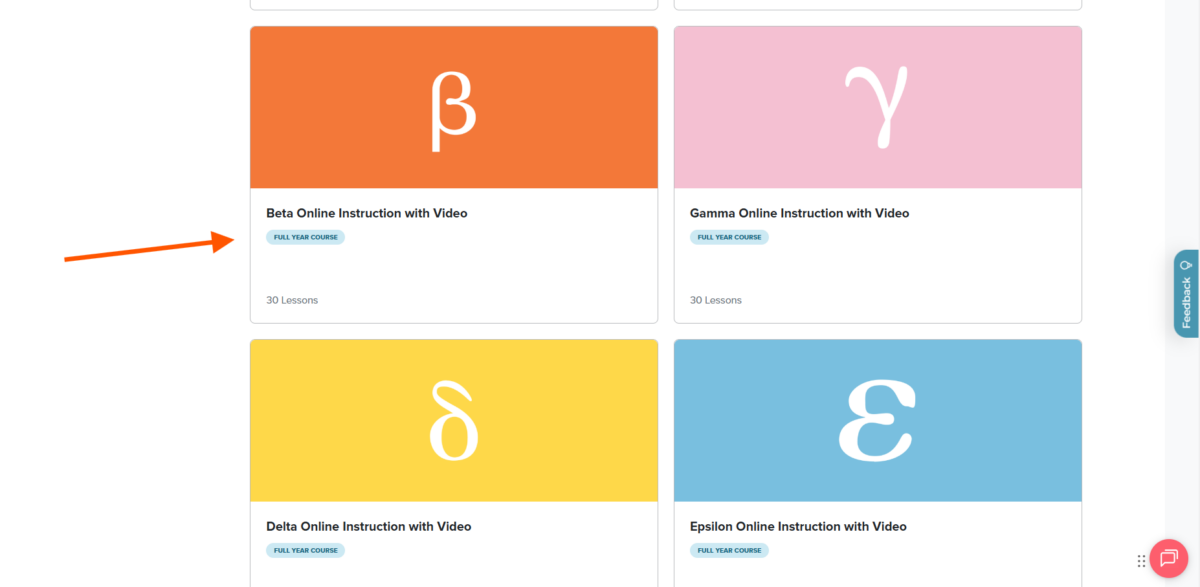
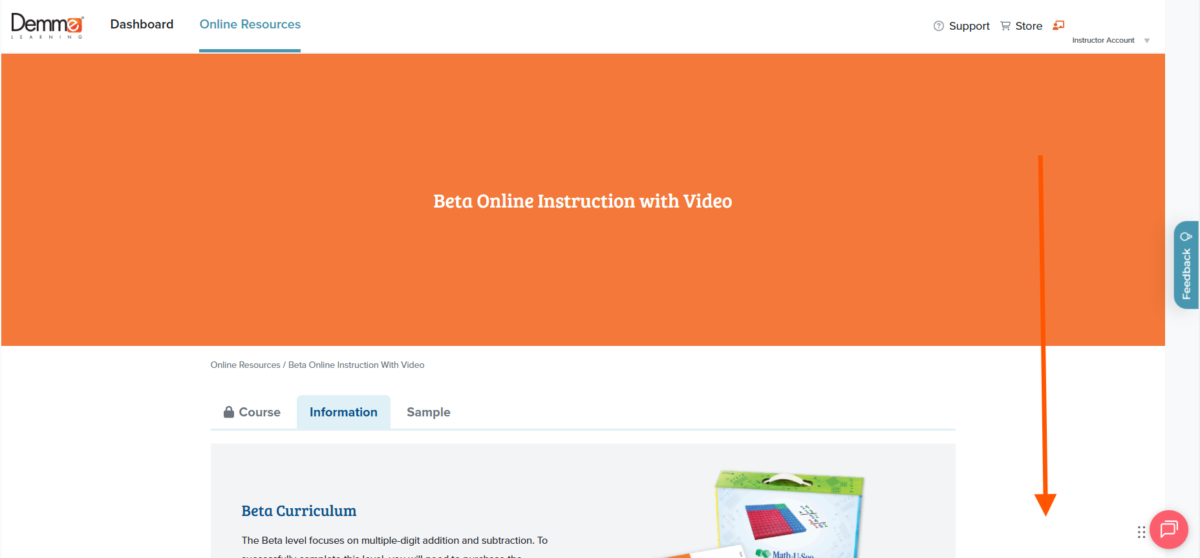
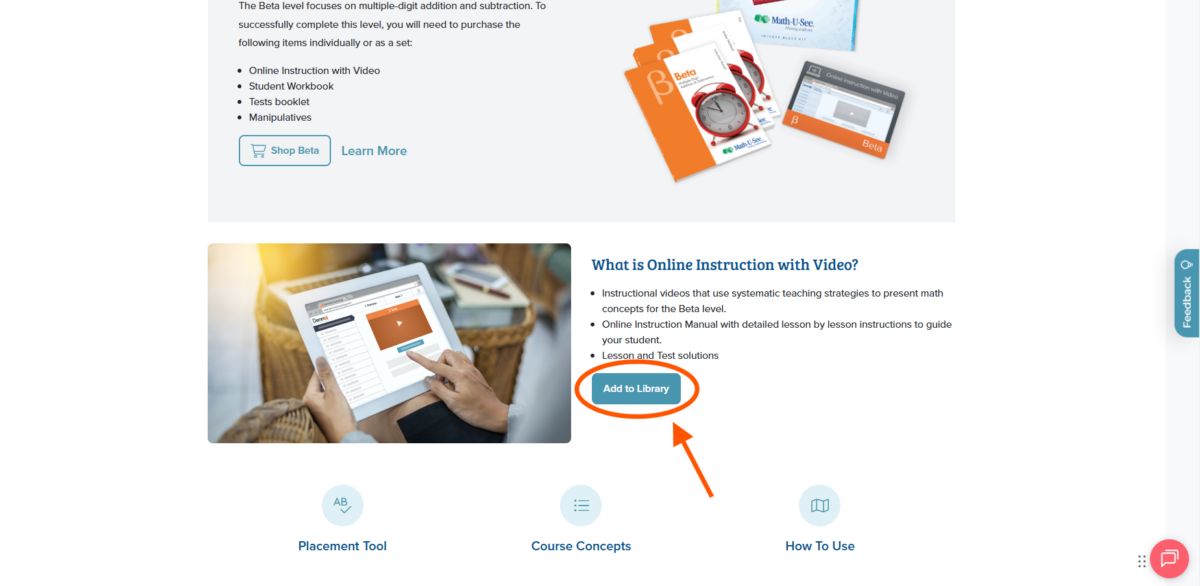


Step 2: Update the Student’s Assignment
Once the course is in your Library, you can update the student’s access:
- Navigate to Groups and select your group name.
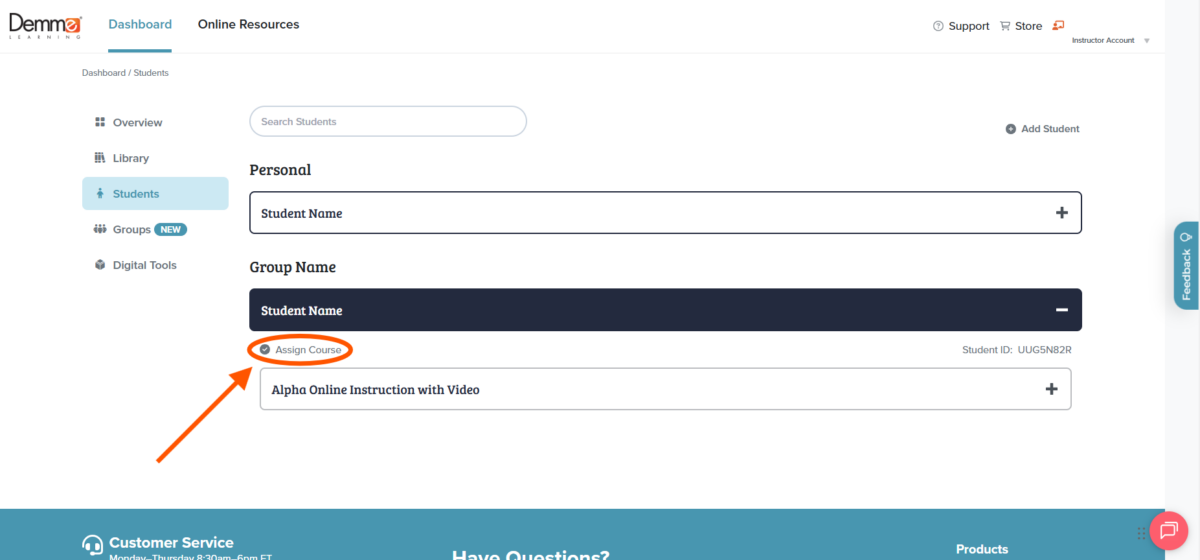
- Click on the Student’s Name you wish to change.
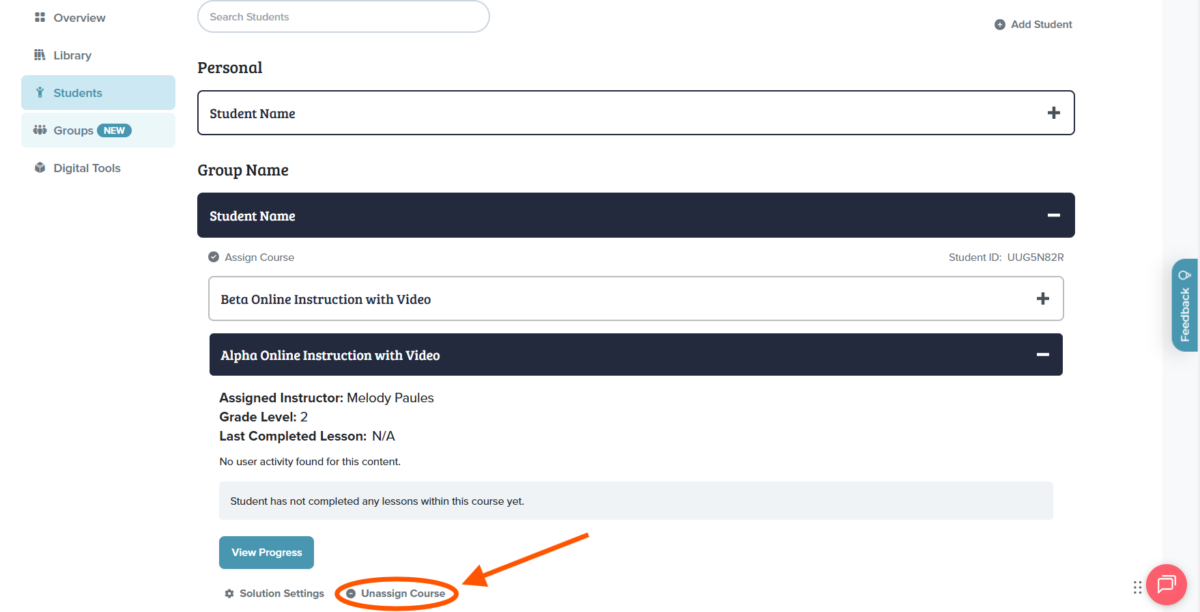
- Remove Old Level (Optional): If you want to tidy up the student’s dashboard, you can unassign their previous level.
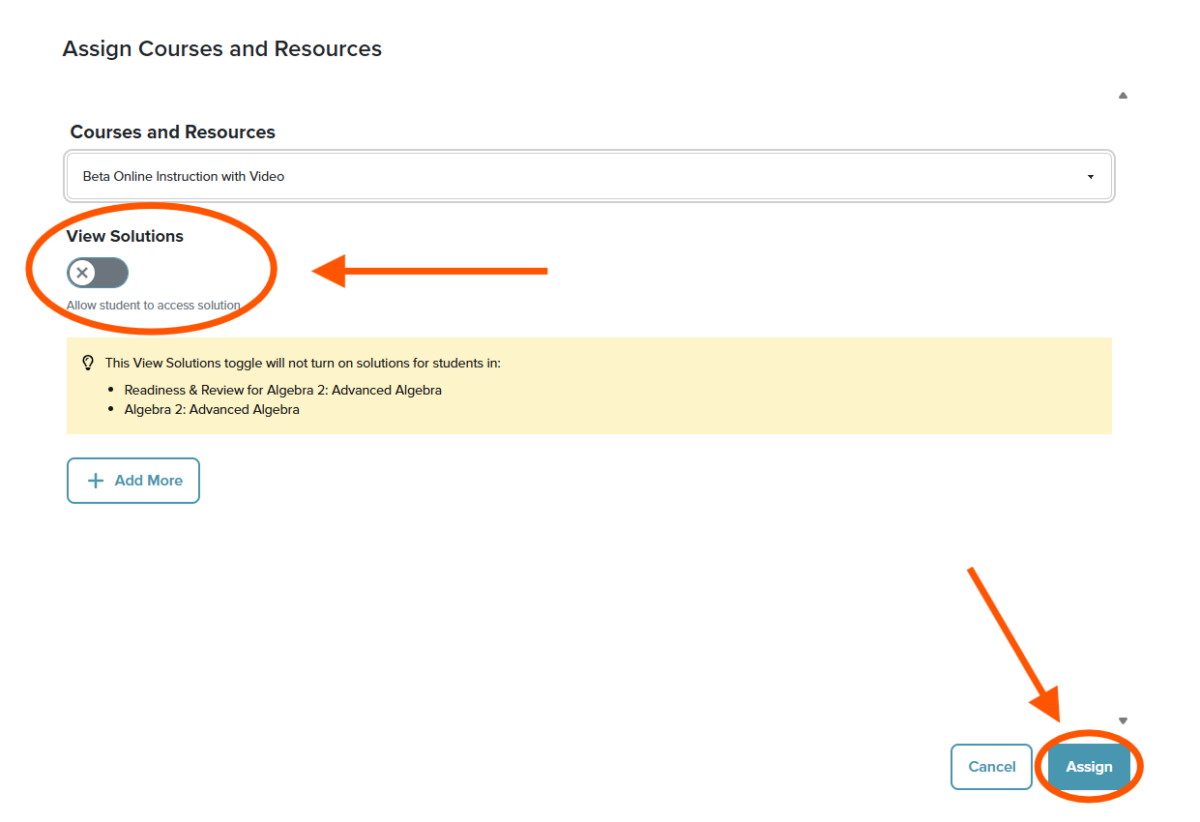
- Assign New Level: Select Assign Course, choose the new level from the dropdown menu, and click Save.
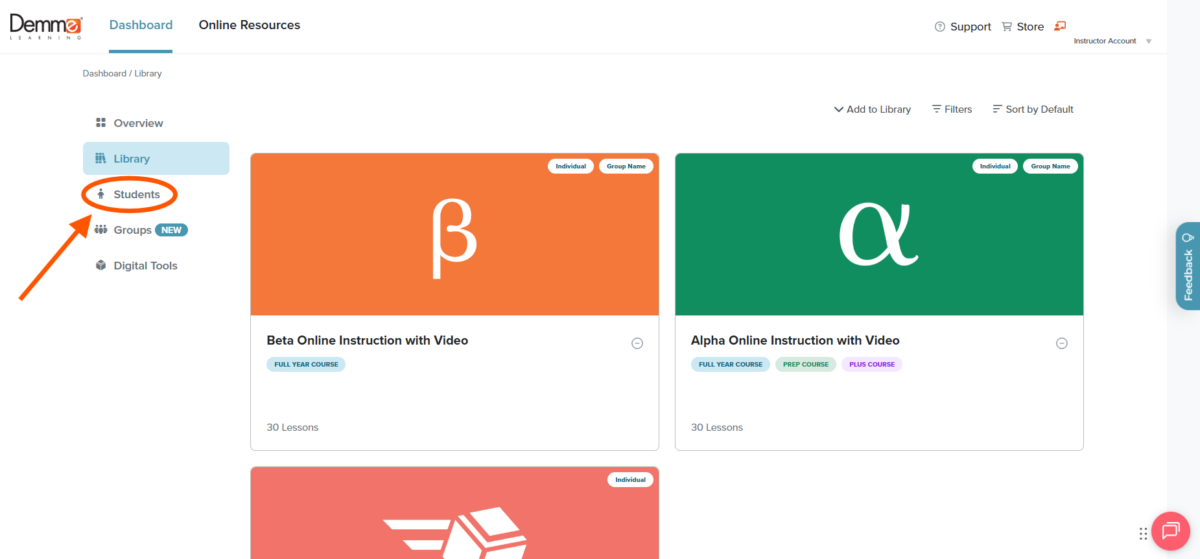
Important Rules for Changing Levels
To ensure consistent progress and platform stability, please keep the following Library rules in mind:
- 30-Day Rule: Once you add a course to your Library, it stays there for at least 30 days before it can be swapped for a different level.
- Progress is Saved: If you unassign a course from a student to move them to a different level, their progress in the original course is not deleted. If you ever reassign that original course to them in the future, their completed lessons will still be there.
- Concurrent Levels: You can have a student assigned to multiple levels at once (for example, if they are finishing the end of one level while starting the beginning of the next), provided you have enough Course Credits available in your Library.
Was this article helpful?
0 out Of 5 Stars
| 5 Stars | 0% | |
| 4 Stars | 0% | |
| 3 Stars | 0% | |
| 2 Stars | 0% | |
| 1 Stars | 0% |
5
Tags:
In this Article: