



-
Math-U-See
- Online Instruction with Video Access
- Adapting to the Updated Format in Algebra 1: Principles of Secondary Mathematics
- Why Did Demme Learning Develop Algebra 1: PSM?
- Transferring Digital Licenses
- Strategies for Gamma: Multi-Digit Multiplication with Manipulatives
- Pre-Algebra Lesson 8 Solutions
- Why Upper Level Math Presenters are Off-Screen
- What Are Skip Counting Songs and Where Can I Find Them?
- Is Demme Learning Discontinuing the Math-U-See DVDs?
- Math-U-See PreAlgebra Tips for Success
- Math-U-See Algebra 1: Legacy Tips for Success
- Math-U-See Geometry Tips for Success
- Math-U-See Algebra 2: Legacy Tips for Success
- Why Is Counting an Inefficient Method for Solving Math Facts?
- How Math-U-See Aligns with Texas Math Standards (TEKS)
- How Money Blocks Use Grouping by Five to Teach Money Concepts
- Using Fraction Overlays
- Pacing in Algebra 2: Principles of Secondary Mathematics
- What a Week Looks Like in Algebra 2: Principles of Secondary Mathematics
- How a Lesson Works in Algebra 2: Principles of Secondary Mathematics
- How to Know Algebra 2: PSM is Right for Your Student
- Using the Printed Algebra 1: Principles of Secondary Mathematics Instructor Handbooks
- Show all articles ( 19 ) Collapse Articles
-
- Activity Sheets
- Application and Enrichment Solutions for Older Editions
- Calculator Usage
- Corrections for Comb-Bound Editions
- Course Descriptions
- Engaging Your Math-U-See Student
- Honors Solutions for Older Editions
- How to Use the Digital Toolbox
- Math-U-See Curriculum Cover Images
- Math-U-See Curriculum Student Workbooks
- How to Teach Math-U-See Lessons
- Math-U-See Magnetic Blocks
- Math-U-See Mastery
- Math-U-See Tests
- Math-U-See Videos
- Playing DVDs on Windows 10
- Printable Graph Paper
- Record Keeping, Grading, and Transcripts
- Word Problem Tips
- Tips for New Math-U-See Users
- Tips for the struggling math student
- Using Math-U-See with Color Vision Deficiency
- Version Compatibility
- What do I need to use Math-U-See?
- Math-U-See Curriculum Softcover Instruction Manuals
- When Students Struggle with Fractions
- Manipulative Kit Contents
- Do Demme Learning Products Follow State Standards?
- Math-U-See Video Lengths
- How to Print a Completion Certificate for a Math-U-See Level
- The Value of Math-U-See Student Workbook and Tests
- Why Upper Level Math Presenters are Off-Screen
- Understanding Changes to Demme Learning Bundled Sets
- Are Math-U-See Manipulatives Non-Toxic?
- Watching Math-U-See Videos on a Chromebook?
- Is Demme Learning Discontinuing the Math-U-See DVDs?
- Why Is Counting an Inefficient Method for Solving Math Facts?
- How Math-U-See Aligns with Texas Math Standards (TEKS)
- How Money Blocks Use Grouping by Five to Teach Money Concepts
- Show all articles ( 36 ) Collapse Articles
-
- Strategies for Gamma: Multi-Digit Multiplication with Manipulatives
- Pre-Algebra Lesson 8 Solutions
- Why Upper Level Math Presenters are Off-Screen
-
- Activity Sheets
- Application and Enrichment pages for Primer, Alpha and Beta
- Calculator Usage
- Corrections for Comb-Bound Editions
- Math Fact Sheets
- Math-U-See Curriculum Cover Images
- Math-U-See Curriculum Student Workbooks
- Record Keeping, Grading, and Transcripts
- Version Compatibility
- Math-U-See Video Lengths
- What Are Skip Counting Songs and Where Can I Find Them?
- Show all articles ( 8 ) Collapse Articles
-
- Activity Sheets
- Application and Enrichment pages for Primer, Alpha and Beta
- Calculator Usage
- Corrections for Comb-Bound Editions
- Math Fact Sheets
- Math-U-See Curriculum Cover Images
- Math-U-See Curriculum Student Workbooks
- Record Keeping, Grading, and Transcripts
- Version Compatibility
- Math-U-See Video Lengths
- Show all articles ( 7 ) Collapse Articles
-
- Application and Enrichment Solutions for Older Editions
- Calculator Usage
- Corrections for Comb-Bound Editions
- Math Fact Sheets
- Math-U-See Curriculum Cover Images
- Math-U-See Curriculum Student Workbooks
- Record Keeping, Grading, and Transcripts
- Version Compatibility
- Math-U-See Video Lengths
- Strategies for Gamma: Multi-Digit Multiplication with Manipulatives
- What Are Skip Counting Songs and Where Can I Find Them?
- Show all articles ( 8 ) Collapse Articles
-
- Application and Enrichment Solutions for Older Editions
- Calculator Usage
- Corrections for Comb-Bound Editions
- Math Fact Sheets
- Math-U-See Curriculum Cover Images
- Math-U-See Curriculum Student Workbooks
- Record Keeping, Grading, and Transcripts
- Version Compatibility
- Math-U-See Video Lengths
- Show all articles ( 6 ) Collapse Articles
-
- Application and Enrichment Solutions for Older Editions
- Calculator Usage
- Corrections for Comb-Bound Editions
- Math Fact Sheets
- Math-U-See Curriculum Cover Images
- Math-U-See Curriculum Student Workbooks
- Record Keeping, Grading, and Transcripts
- Version Compatibility
- Math-U-See Video Lengths
- Epsilon Tips and Tricks for Fractions
- Using Fraction Overlays
- Show all articles ( 8 ) Collapse Articles
-
- Application and Enrichment Solutions for Older Editions
- Calculator Usage
- Corrections for Comb-Bound Editions
- Math Fact Sheets
- Math-U-See Curriculum Cover Images
- Math-U-See Curriculum Student Workbooks
- Record Keeping, Grading, and Transcripts
- Version Compatibility
- Math-U-See Video Lengths
- Show all articles ( 6 ) Collapse Articles
-
- Pre-Algebra Lesson 7 Support Video
- Application and Enrichment Solutions for Older Editions
- Calculator Usage
- Corrections for Comb-Bound Editions
- Course Descriptions
- Honors Solutions for Older Editions
- Math-U-See Curriculum Cover Images
- Math-U-See Curriculum Student Workbooks
- Printable Graph Paper
- Record Keeping, Grading, and Transcripts
- Version Compatibility
- Readiness and Review for Algebra 1 Principles of Secondary Mathematics
- Math-U-See Video Lengths
- Order of Operations - PreAlgebra Lesson 14 and Algebra 1: Legacy Edition Lesson 2
- Pre-Algebra Lesson 8 Solutions
- Math-U-See PreAlgebra Tips for Success
- Show all articles ( 13 ) Collapse Articles
-
- How a Lesson Works in Algebra 1: Principles of Secondary Mathematics
- What a Week Looks Like in Algebra 1: Principles of Secondary Mathematics
- Record Keeping, Grading, and Transcripts
- Better Practice versus More Practice in Algebra 1: Principles of Secondary Mathematics
- Pacing in Algebra I: Principles of Secondary Mathematics
- What's the Difference between Algebra 1: Principles of Secondary Mathematics and Algebra 1: Legacy?
- A1: PSM Videos
- Readiness and Review for Algebra 1 Principles of Secondary Mathematics
- Math-U-See Video Lengths
- Adapting to the Updated Format in Algebra 1: Principles of Secondary Mathematics
- Why Did Demme Learning Develop Algebra 1: PSM?
- Readiness and Review Materials: Algebra 1: PSM to Algebra 2: PSM
- If I've Completed Algebra 1: PSM, What Should I Do Next?
- Using the Printed Algebra 1: Principles of Secondary Mathematics Instructor Handbooks
- Show all articles ( 11 ) Collapse Articles
-
- Extra Practice Pages for Algebra 1: Legacy Edition
- Algebra 1: Legacy Edition Lesson 1 Support Video
- Calculator Usage
- Corrections for Comb-Bound Editions
- Course Descriptions
- Honors Solutions for Older Editions
- Math-U-See Curriculum Cover Images
- Math-U-See Curriculum Student Workbooks
- Printable Graph Paper
- Version Compatibility
- Record Keeping, Grading, and Transcripts
- What's the Difference between Algebra 1: Principles of Secondary Mathematics and Algebra 1: Legacy?
- Math-U-See Video Lengths
- Order of Operations - PreAlgebra Lesson 14 and Algebra 1: Legacy Edition Lesson 2
- Why Did Demme Learning Develop Algebra 1: PSM?
- Math-U-See Algebra 1: Legacy Tips for Success
- Show all articles ( 13 ) Collapse Articles
-
- Geometry Lesson 2A Question 16 Support Video
- Geometry Lessons 17 & 19 Support Video – Square Roots
- Calculator Usage
- Corrections for Comb-Bound Editions
- Course Descriptions
- Math-U-See Curriculum Cover Images
- Math-U-See Curriculum Student Workbooks
- Printable Graph Paper
- Version Compatibility
- Record Keeping, Grading, and Transcripts
- Math-U-See Video Lengths
- Math-U-See Geometry Tips for Success
- If I've Completed Algebra 1: PSM, What Should I Do Next?
- Show all articles ( 10 ) Collapse Articles
-
- Algebra 2 Lesson 2 Finding the Least Common Denominator Support Video
- Algebra 2 Lesson 4 Square Roots Support Video
- Algebra 2 Lesson 5B-1 (1,5,10) Support Video
- Algebra 2 Lesson 5B-1 (7,9,11) Support Video
- Algebra 2 Lesson 6 Support Video
- Algebra 2 Lessons 7–8 Imaginary Numbers and Conjugates Support Video
- Algebra 2 Lesson 11 Completing the Square Support Video
- Algebra 2 Lesson 23 and 26 Graphing Ellipses and Hyperbolas Support Video
- Algebra 2 Lesson 27a Support Video
- Calculator Usage
- Corrections for Comb-Bound Editions
- Course Descriptions
- Extra Practice Sheets for Algebra 2
- Honors Solutions for Older Editions
- Math-U-See Curriculum Cover Images
- Math-U-See Curriculum Student Workbooks
- Printable Graph Paper
- Version Compatibility
- Record Keeping, Grading, and Transcripts
- Math-U-See Video Lengths
- Math-U-See Algebra 2: Legacy Tips for Success
- Show all articles ( 18 ) Collapse Articles
-
- PreCalculus Lesson 7 Support Video
- PreCalculus Lesson 9 Proving Identities Support Video
- PreCalculus Test 14 Questions 9 and 10 Support Video
- PreCalculus Lesson 17 - Tips on how to graph Polar Equations
- PreCalculus Lesson 21 & 22 - Helpful Hints
- PreCalculus Lesson 23 Graphing Sine and Cosine Support Video
- PreCalclulus Lesson 24 Support Video: Graphing Secant & Cosecant
- PreCalclulus Lesson 25 Support Video: Graphing Tangent & Cotangent
- PreCalculus Lesson 26 & L27 Support Video: Finding 'n'
- Calculator Usage
- Corrections for Comb-Bound Editions
- Course Descriptions
- Honors Solutions for Older Editions
- Math-U-See Curriculum Cover Images
- Math-U-See Curriculum Student Workbooks
- Printable Graph Paper
- Version Compatibility
- Record Keeping, Grading, and Transcripts
- Math-U-See Video Lengths
- Show all articles ( 16 ) Collapse Articles
-
- Adapting to the Updated Format in Algebra 2: Principles of Secondary Mathematics
- Readiness and Review Materials: Algebra 1: PSM to Algebra 2: PSM
- Pacing in Algebra 2: Principles of Secondary Mathematics
- What a Week Looks Like in Algebra 2: Principles of Secondary Mathematics
- How a Lesson Works in Algebra 2: Principles of Secondary Mathematics
- How to Know Algebra 2: PSM is Right for Your Student
- If I've Completed Algebra 1: PSM, What Should I Do Next?
- Show all articles ( 4 ) Collapse Articles
-
- Addressing Hesitations About Manipulatives
- Digital Manipulative App FAQs
- Virtual Manipulatives
- Math-U-See Magnetic Blocks
- Why and when to use Math-U-See manipulatives
- Can I order replacement pieces of Math-U-See manipulatives?
- Manipulative Kit Contents
- Strategies for Gamma: Multi-Digit Multiplication with Manipulatives
- Are Math-U-See Manipulatives Non-Toxic?
- How Money Blocks Use Grouping by Five to Teach Money Concepts
- Using Fraction Overlays
- Show all articles ( 8 ) Collapse Articles
-
- Online Instruction with Video Access
- Troubleshooting the Online Instruction with Video(s) and the Digital Toolbox
- How to Use the Digital Toolbox
- Math-U-See Videos
- Online Drill Tool
- Using the Worksheet Generator
- Application and Enrichment Solutions for Older Editions
- Digital Manipulative App FAQs
- Virtual Manipulatives
- Math Fact Sheets
- Record Keeping, Grading, and Transcripts
- Extra Practice Pages for Algebra 1: Legacy Edition
- Where can I find the solutions for problems in the Student Workbooks and Test Books in the Digital Toolbox?
- How do I create a student account?
- How to Modify Your Student’s Account
- What If I Find an Error?
- How to Monitor Your Student’s Progress in the Digital Toolbox
- How to Use the Digital Toolbox on a Mobile Device
- Can I Watch the Digital Toolbox Videos on My Smart TV?
- Watching Math-U-See Videos on a Chromebook?
- Transferring Digital Licenses
- Data Privacy and Login Access Across Demme Learning Platforms
- Using Fraction Overlays
- Show all articles ( 20 ) Collapse Articles
-
Spelling You See
-
- Addressing Errors In Spelling You See
- Handwriting in Spelling You See
- Mastery in Spelling You See
- Overlapping Chunks
- Do Demme Learning Products Follow State Standards?
- Timed Segments in Spelling You See
- Understanding Changes to Demme Learning Bundled Sets
- How Do I Access Spelling You See Online Resources?
- Why Don't Spelling You See Sets Include Erasable Colored Pencils?
- Identifying Challenging Words in Spelling You See
- Show all articles ( 7 ) Collapse Articles
-
-
- Addressing Errors In Spelling You See
- Base words vs root words
- What comes after Modern Milestones?
- Timed Segments in Spelling You See
- How Do I Access Spelling You See Online Resources?
- Why Don't Spelling You See Sets Include Erasable Colored Pencils?
- Identifying Challenging Words in Spelling You See
- Show all articles ( 4 ) Collapse Articles
-
-
Analytical Grammar
- Analytical Grammar Level Breakdowns
- Analytical Grammar Process Chart
- Analytical Grammar Group Learning Sample Syllabus
-
- Playing your Analytical Grammar DVDs
- How can I use Analytical Grammar in a classroom or group setting?
- Do Demme Learning Products Follow State Standards?
- What's Changed with Analytical Grammar?
- Analytical Grammar Level Breakdowns
- Analytical Grammar Process Chart
- Understanding Changes to Demme Learning Bundled Sets
- Show all articles ( 4 ) Collapse Articles
-
-
- Articles coming soon
-
Accelerated Individualized Mastery
- How to Use AIM: Multiplication
- Getting Started with AIM: Multiplication
- How to Use AIM: Addition and Subtraction
- Getting Started with AIM: Addition and Subtraction
- How Long Does It Take to Complete the AIM Program? Is There a Pacing Guide?
- Why Is Counting an Inefficient Method for Solving Math Facts?
- Show all articles ( 3 ) Collapse Articles
-
-
- Accelerated Individualized Mastery for Addition and Subtraction 2021 Updates
- Tips and Next Steps for Accelerated Individualized Mastery (AIM) for Addition and Subtraction
- How to Use AIM: Addition and Subtraction
- Getting Started with AIM: Addition and Subtraction
- How Long Does It Take to Complete the AIM Program? Is There a Pacing Guide?
- Show all articles ( 2 ) Collapse Articles
-
-
WriteShop
-
Customer Service
- Reset your password
- Do you have an affiliate program?
- Returns & Exchanges
- Shipping Options
- Previous Orders
- I’ve purchased a set, but when I look at my order in my account dashboard it lists several different products.
- Defective Items
- Photocopies & Copyright
- Does Demme Learning Work With My State's Educational Assistance Program?
- Shipping & Delivery Times for School and Classroom Orders
- How Can I Use Shop Pay for My Demme Learning Purchases?
- Show all articles ( 8 ) Collapse Articles
-
Schools
- Does Demme Learning Work With My State's Educational Assistance Program?
- Bulk Uploading Student Accounts via CSV in the Digital Toolbox (For Schools Only)
- How to Administer the School Placement Test
- Shipping & Delivery Times for School and Classroom Orders
- Show all articles ( 1 ) Collapse Articles
-
-
- School Administrator Account User Guide
- Creating School Teacher Account
- School Student Accounts
- Professional Access
- Show all articles ( 1 ) Collapse Articles
-
Digital Tools
- Watching Math-U-See Videos on a Chromebook?
- How to Whitelist the Demme Learning Digital Toolbox URL When Using AVG Anti-virus
- Whitelisting Domains for Demme Learning Digital Toolbox
- Bulk Uploading Student Accounts via CSV in the Digital Toolbox (For Schools Only)
- Using Region Preferences in the Digital Toolbox (Homeschool Parent / Instructor Accounts Only)
- How do I Assign a Course to my Student?
- How to Use Early Access on a Mobile Device
- How to Use Early Access
- How to Submit Feedback in Early Access
- Trouble Opening Demme Learning Pages in Safari on iPhone or iPad?
- Show all articles ( 7 ) Collapse Articles
-
- Online Drill Tool
- Using the Worksheet Generator
- How do I create a student account?
- Online Instruction with Video Access
- Printable Graph Paper
- Troubleshooting the Online Instruction with Video(s) and the Digital Toolbox
- How to Modify Your Student’s Account
- Reset your password
- What If I Find an Error?
- How to Monitor Your Student’s Progress in the Digital Toolbox
- How to Use the Digital Toolbox on a Mobile Device
- Can I Watch the Digital Toolbox Videos on My Smart TV?
- How to Use the Digital Toolbox
- How to Whitelist the Demme Learning Digital Toolbox URL When Using AVG Anti-virus
- Whitelisting Domains for Demme Learning Digital Toolbox
- Bulk Uploading Student Accounts via CSV in the Digital Toolbox (For Schools Only)
- Using Region Preferences in the Digital Toolbox (Homeschool Parent / Instructor Accounts Only)
- Show all articles ( 14 ) Collapse Articles
-
Building Faith and Family
-
- Course Descriptions
- Stewardship 1st and 2nd edition compatibility
- Stewardship Prerequisites
- Stewardship Resources
- Stewardship Samples
- What do I need for Stewardship Math?
- How to redeem your access code and access the Stewardship Online Instruction with Video.
- Show all articles ( 4 ) Collapse Articles
-
-
Group Learning
-
Subscriptions
- What Is an Individual Subscription?
- How do Billing Cycles and Renewals Work?
- Getting Started With Your Individual Subscription
- What is a Group Subscription and How Does it Work?
- How Do I Create a Group?
- Adding and Managing Students in a Group
- How Do I Add Additional Instructors to a Group?
- How Do I Move or Change a Student's Level?
- How Do I Add Courses to a Group?
- Why Can’t I See My Course Online?
- How Do I Redeem Unused Credits?
- What Happens When a Subscription Expires?
- Managing Your Subscription: Upgrades, Downgrades, and Cancellations
- How to Redeem a Demme Learning Subscription or an Online Instruction With Video Redemption Code
- Show all articles ( 11 ) Collapse Articles
-
- What is a Group Subscription and How Does it Work?
- How Do I Create a Group?
- Adding and Managing Students in a Group
- How Do I Add Additional Instructors to a Group?
- How Do I Move or Change a Student's Level?
- How Do I Add Courses to a Group?
- Why Can’t I See My Course Online?
- How Do I Redeem Unused Credits?
- What Happens When a Subscription Expires?
- Managing Your Subscription: Upgrades, Downgrades, and Cancellations
- Show all articles ( 7 ) Collapse Articles
- Support Center
- Subscriptions
- Why Can’t I See My Course Online?
Why Can’t I See My Course Online?
If you have purchased a subscription but your courses aren’t appearing where you expect them to be, it is usually due to one of two reasons: the course hasn’t been added to your Library yet, or you are looking for content that lives in our Digital Toolbox.
1. I’m in the New Dashboard, but the Course is Missing
In our new system, purchasing a subscription gives you Course Credits, but it does not automatically place specific courses in your Library. You must manually “claim” them.
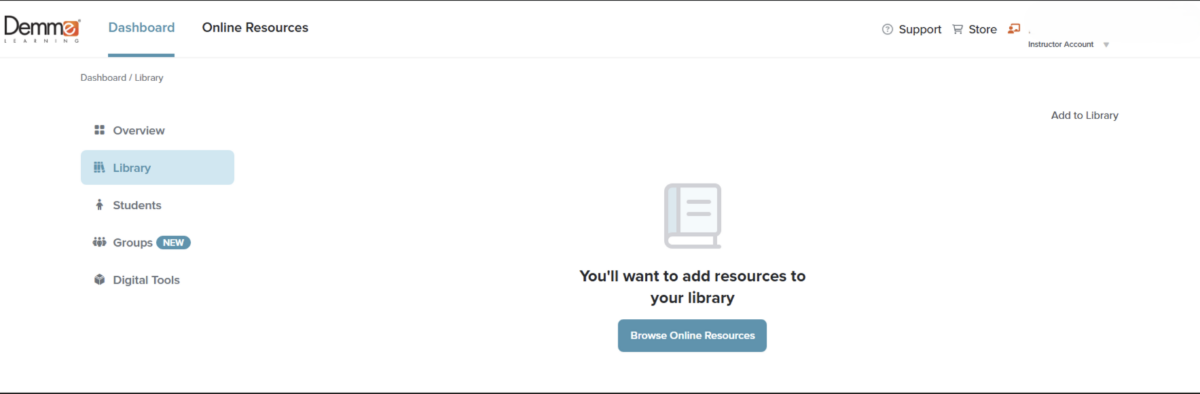
- Check Your Library: In your Dashboard, click the Library tab in the left sidebar. If it’s empty, you haven’t added your courses yet.
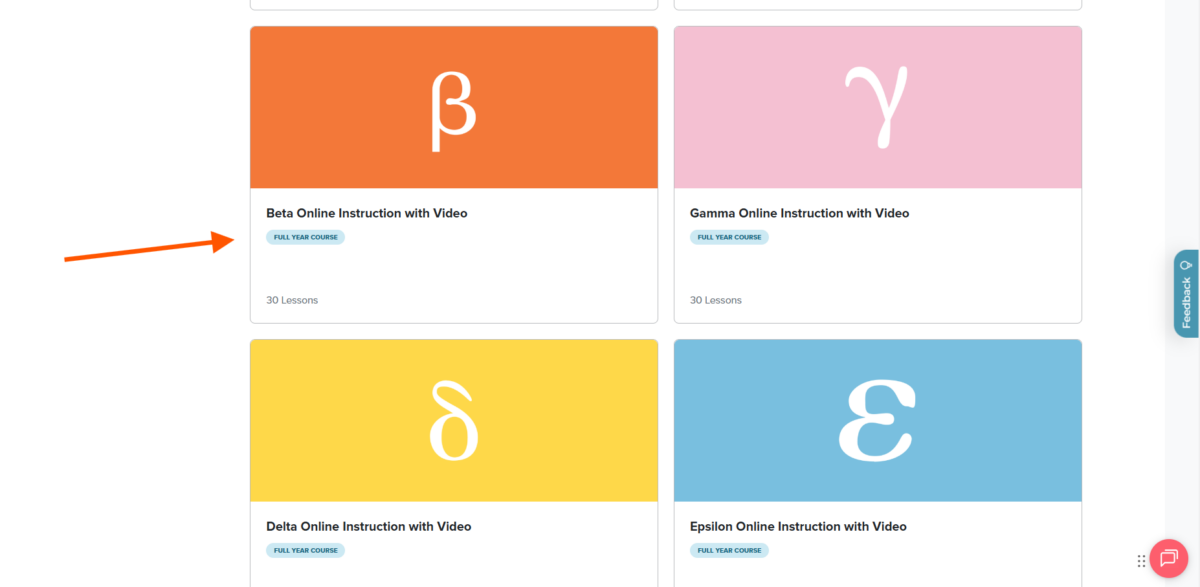
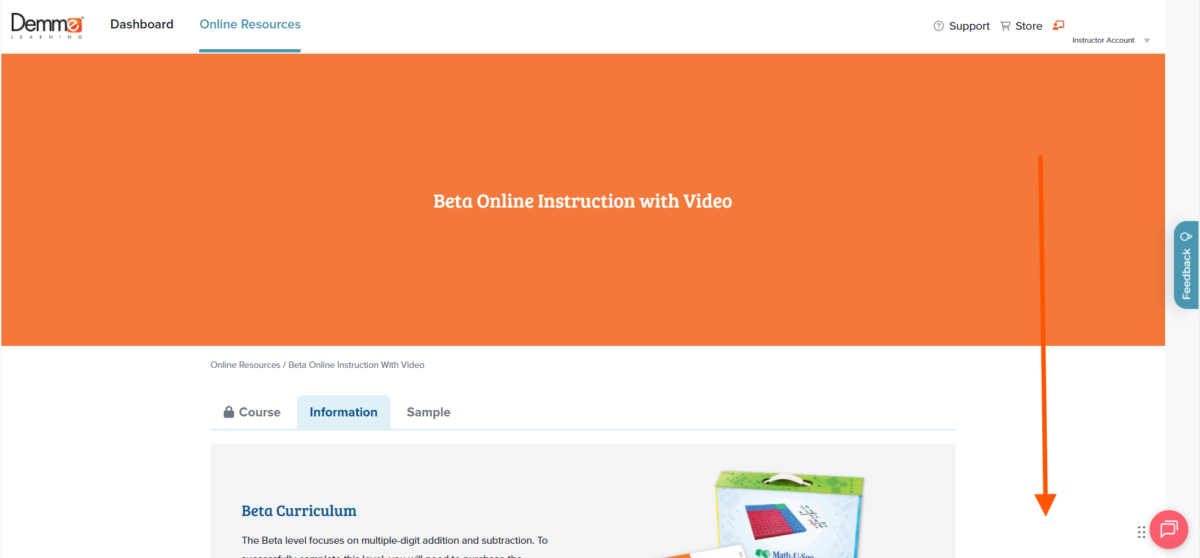
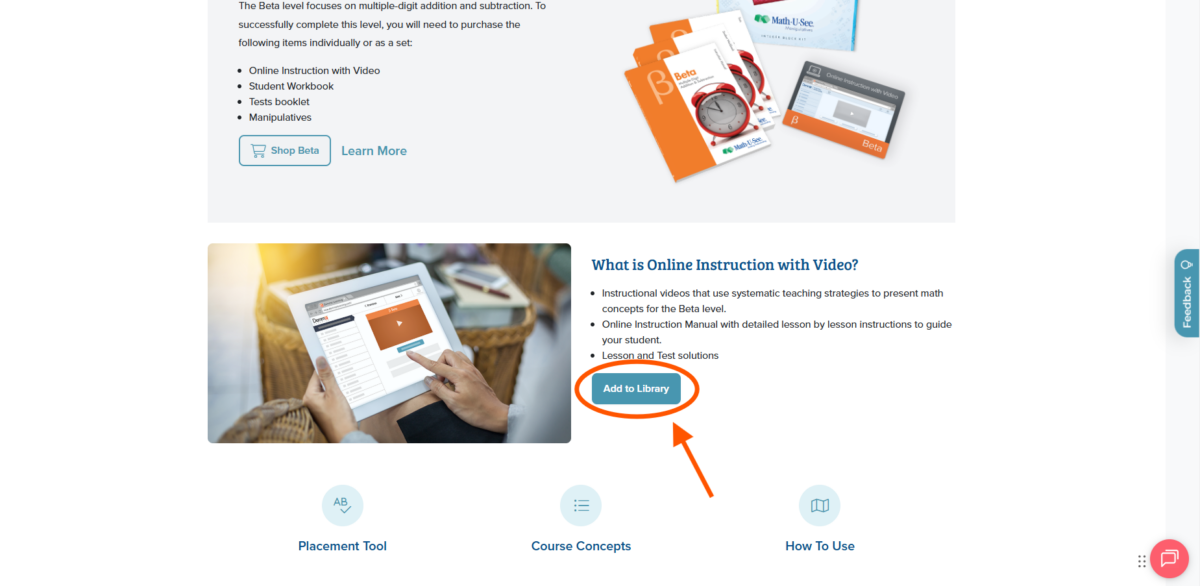
- Use Your Credits: Go to the Online Resources tab, find the course you need (e.g., Beta Online Instruction with Video), and click Add to Library. This will use one of your subscription credits and make the course visible.

- Assign to Student: Remember, once a course is in your Library, you must still click on a student’s name in the Students tab and “Assign” that course to them before they can see it on their own dashboard.
2. Why is my course in the Digital Toolbox but not the New Dashboard?
Customers who have previously purchased Online Instruction with Video and used it in the Digital Toolbox will continue to have lifetime access in the new environment. If you can see your course in the Digital Toolbox but not in the new Demme Learning Dashboard, don’t worry—this is a common occurrence. Courses previously accessed in the Digital Toolbox may not automatically appear in your Library on the new platform. In these cases, the course simply needs to be added to your library manually.
How to Fix It: You can quickly resolve this by adding the course to your library in the new dashboard:
- Go to the New Demme Learning Dashboard: Visit new.demmelearning.com/dashboard/.
- Click on Online Resources: Located in the navigation menu.
- Locate your course: Find your specific level or product in the list.
- Click on the Course Information: Select the course to view details.
- Select “Add to Library”: Once added, the course will appear in your Dashboard Library and be ready for you to use or assign to students.
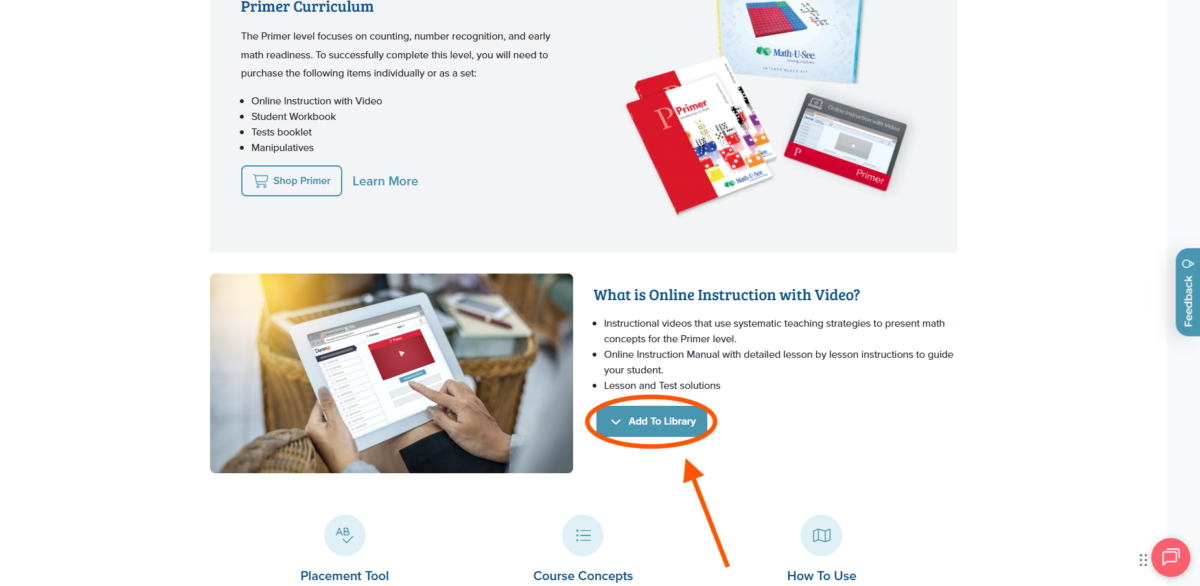
3. Quick Sync Checklist
If you have a new subscription and still don’t see anything:
- Refresh Your Session: Sign out and sign back in at new.demmelearning.com to force the system to sync with your recent purchase.
- Check Your Account Type: Ensure you are signed in as an Instructor. Students have a restricted view and cannot add courses to the library.
- Verify Billing Status: Go to Manage Subscriptions to ensure your payment was successful. If a payment is “Past Due,” course access is temporarily hidden until the balance is resolved.

Still having trouble? Contact our Support Team.
0.5 out Of 5 Stars
1 rating
| 5 Stars | 0% | |
| 4 Stars | 0% | |
| 3 Stars | 0% | |
| 2 Stars | 0% | |
| 1 Stars | 100% |